Styling Guide
A practical guide to styling pom presentations — colors, fonts, backgrounds, borders, shadows, and more.
Color Format
Colors are specified as 6-digit hex without the # prefix (e.g., FF0000, 333333). This is the recommended format for consistency.
<Text color="333333">Dark gray text</Text>
<Text color="FF0000">Red text</Text>
<VStack backgroundColor="F8F9FA"><Text>Light gray background</Text></VStack>
Design Tokens with <Theme>
Declare a color palette once at the top level with a <Theme> element and reference each token from any color attribute as $tokenName. This keeps the palette in one place instead of repeating hex values on every node.
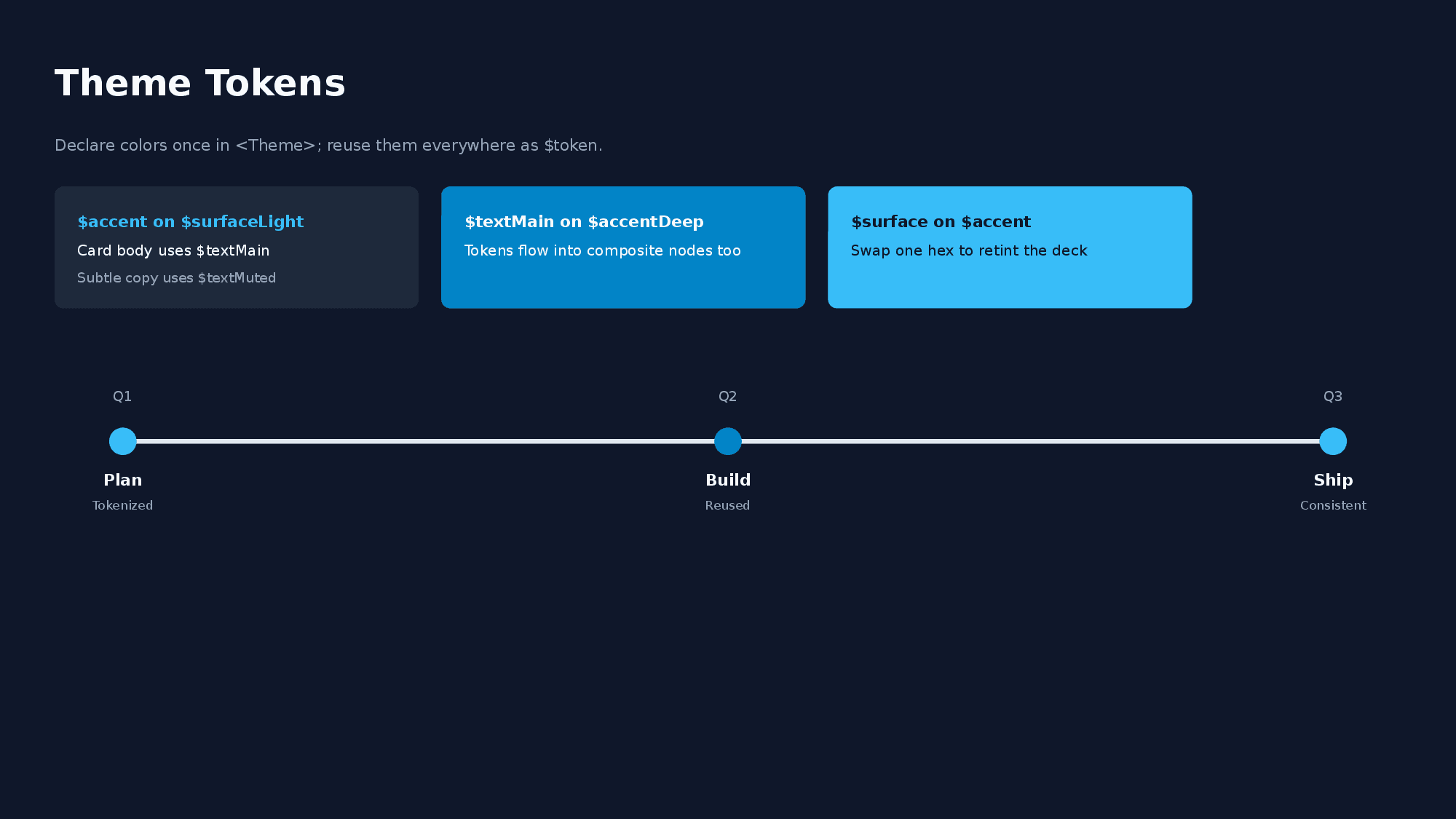
<Theme surface="0F172A" accent="38BDF8" textMain="F8FAFC" textMuted="94A3B8" />
<Slide>
  <VStack w="100%" h="max" padding="48" gap="16" backgroundColor="$surface">
    <Text fontSize="28" color="$textMain" bold="true">Title</Text>
    <Timeline dateColor="$textMuted" titleColor="$textMain" w="1000" h="120">
      <TimelineItem date="Q1" title="Phase 1" color="$accent" />
    </Timeline>
  </VStack>
</Slide>- At most one
<Theme>per document; it applies to all slides regardless of position. $tokenNamereferences are resolved in color attributes (any attribute ending inColor/Colors,colorkeys inside object/JSON attributes,highlight) and insidebackgroundGradient/textGradientstrings.- Composite nodes (
Timeline,Matrix,Tree,Flow) expose dedicated text-color attributes (e.g.dateColor/titleColor/axisLabelColor/textColor/connectorStyle.labelColor) so the whole deck — including labels on charts and diagrams — can be retinted from a single<Theme>. - Token names start with a letter and may contain letters, digits,
_, and-. Values are 6-digit hex (#prefix optional). Referencing an unknown token throws aParseXmlErrorwith a “did you mean” suggestion.
See Nodes — Top-Level <Theme> for the full reference.
Recommended Color Palette
A set of colors that work well for business presentations:
| Purpose | Color | Hex |
|---|---|---|
| Title | Near-black | 1A1A2E |
| Body text | Dark gray | 333333 |
| Subtitle | Medium gray | 666666 |
| Muted text | Light gray | 999999 |
| Primary | Blue | 1D4ED8 |
| Success | Green | 16A34A |
| Warning | Amber | D97706 |
| Danger | Red | DC2626 |
| Info | Sky blue | 0EA5E9 |
| Light BG | Off-white | F8F9FA |
| Border | Light gray | E5E7EB |
Font
The default font is Noto Sans JP, bundled with pom for accurate text measurement in both Node.js and browser environments.
Specifying a Font
<Text fontFamily="Arial">English text in Arial</Text>
<Text fontFamily="Noto Sans JP">Japanese text (default)</Text>
Note: Custom fonts must be installed on the system where the PPTX is opened. For
Text,Ul,Ol, andShape, pass font bytes through thebuildPptxfontsoption to use their advance widths for layout measurement. This does not embed or install the font.
Font Size Guide
| Role | Size (px) | Usage |
|---|---|---|
| Title | 28–40 | Slide titles |
| Heading | 18–24 | Section headings |
| Body | 13–16 | Paragraphs and list items |
| Caption | 10–12 | Footnotes, labels, captions |
<VStack gap="12" alignItems="start">
  <Text fontSize="36" bold="true" color="1A1A2E">Slide Title</Text>
  <Text fontSize="20" bold="true" color="333333">Section Heading</Text>
  <Text fontSize="14" color="333333">Body text with regular size.</Text>
  <Text fontSize="11" color="999999">Caption or footnote</Text>
</VStack>
Line Height
Control line spacing with lineHeight (multiplier of fontSize, default: 1.3).
<Text lineHeight="1.5">Wider line spacing for readability</Text>
<Text lineHeight="1.0">Tight line spacing</Text>
For Text (and the text inside Shape), lineHeight is reflected in both the yoga layout measurement (block height = lines × fontSize × lineHeight) and the rendered line spacing, which is emitted as a fixed value (PowerPoint spcPts) of fontSize × lineHeight. This keeps the measured height and the rendered line height aligned, so a tall lineHeight no longer creates asymmetric whitespace above/below the glyph ink.
Ul / Ol use a different convention. Their line spacing is rendered as a multiplier (PowerPoint spcPct) of the bundled-font metric, so the effective row height is measureFontLineHeightRatio × lineHeight × fontSize. Use the same lineHeight value when you want Text and Ul blocks to look visually consistent; the absolute pixel values may differ slightly.
Text Decoration
Bold, Italic, Strikethrough
<Text bold="true">Bold text</Text>
<Text italic="true">Italic text</Text>
<Text strike="true">Strikethrough text</Text>
<Text bold="true" italic="true">Bold italic</Text>
Inline Formatting
Use <B>, <I>, <U>, <S>, <Mark>, and <Span> child elements to apply bold, italic, underline, strikethrough, highlight, color, or per-run fontSize to part of the text:
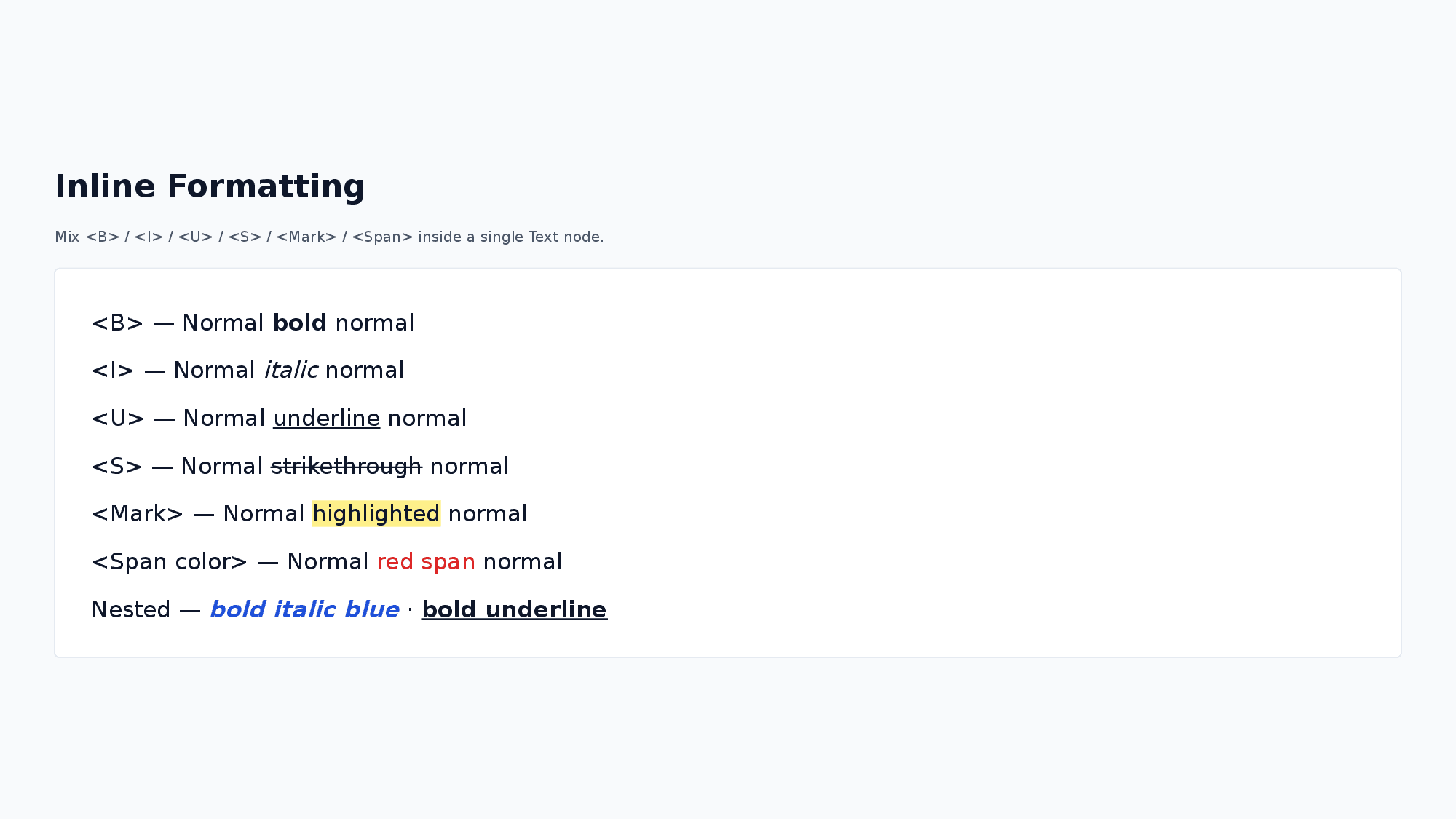
<Text fontSize="16">Normal <B>bold part</B> normal</Text>
<Text fontSize="16">Normal <I>italic part</I> normal</Text>
<Text fontSize="16"><B>bold</B> and <I>italic</I> mixed</Text>
<Text fontSize="16"><B><I>Bold italic (nested)</I></B></Text>
<Text fontSize="16">Normal <U>underline part</U> normal</Text>
<Text fontSize="16">Normal <S>strikethrough part</S> normal</Text>
<Text fontSize="16"><Mark color="FFFF00">highlighted part</Mark> normal</Text>
<Text fontSize="16"><B><U>Bold underline (nested)</U></B></Text>
<Text fontSize="16">Normal <Span color="FF0000">red part</Span> normal</Text>
<Text fontSize="16"><B><Span color="1D4ED8">bold blue</Span></B></Text>
<Text fontSize="52" bold="true" color="1D4ED8">¥84.2<Span fontSize="20">M</Span></Text>
<Span fontSize> is handy for KPI-style “big number + small unit” composition (¥84.2M, 118%) within a single <Text> — the digit and unit share one baseline automatically without needing the older HStack + alignItems="end" workaround. Layout measurement uses the largest run-level fontSize so the Text container is sized for the biggest glyph.
This also works inside <Li> and <Td>:
<Ul fontSize="14">
  <Li>Normal <B>bold</B> item</Li>
  <Li>Normal <U>underline</U> item</Li>
</Ul>
Underline
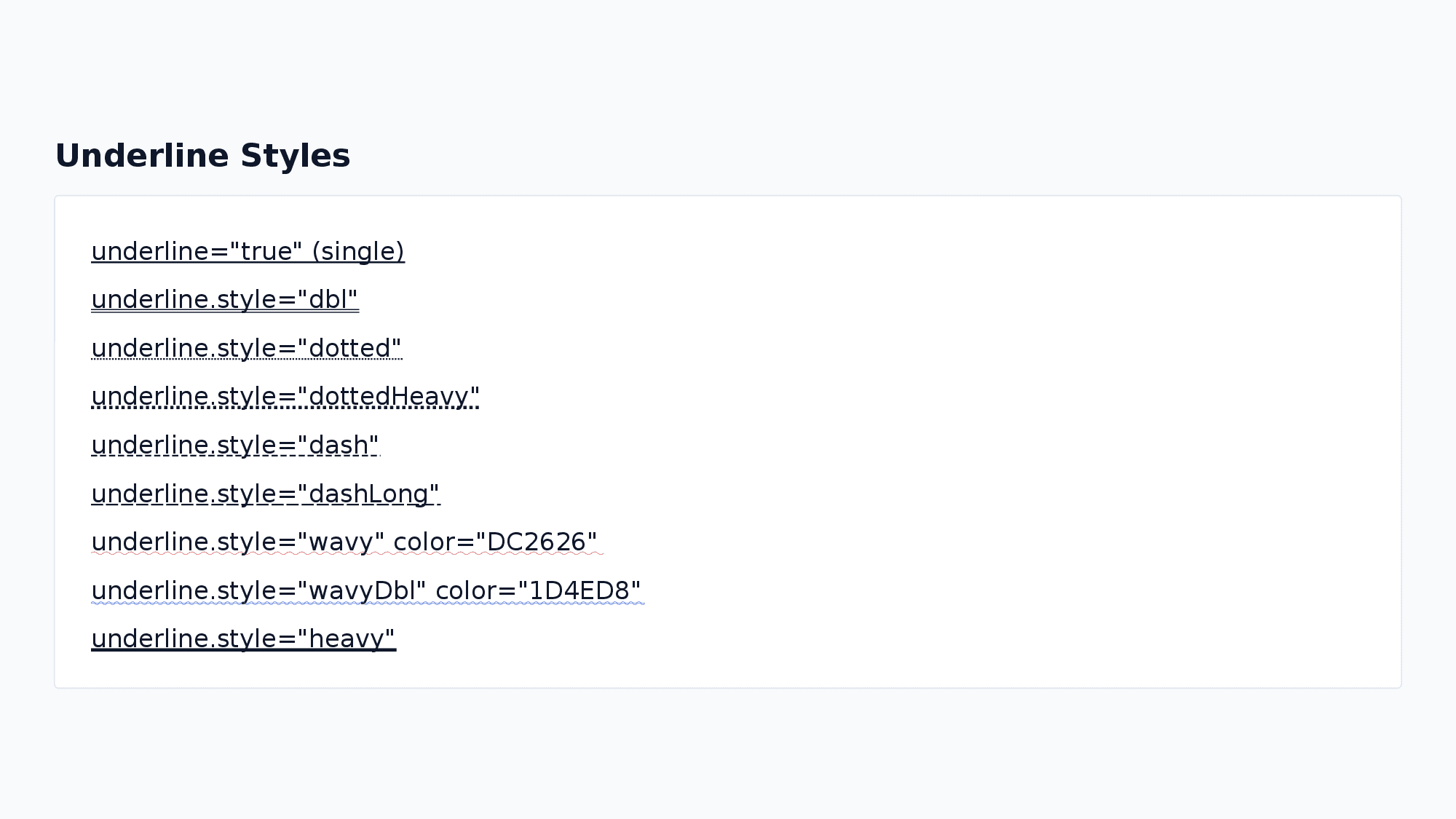
Simple underline:
<Text underline="true">Underlined text</Text>Customized underline with style and color:
<Text underline.style="wavy" underline.color="FF0000">Wavy red underline</Text>
<Text underline.style="dbl">Double underline</Text>
<Text underline.style="dotted">Dotted underline</Text>
See the Text section in Nodes for all available underline styles.
Highlight
Apply a background highlight to text:
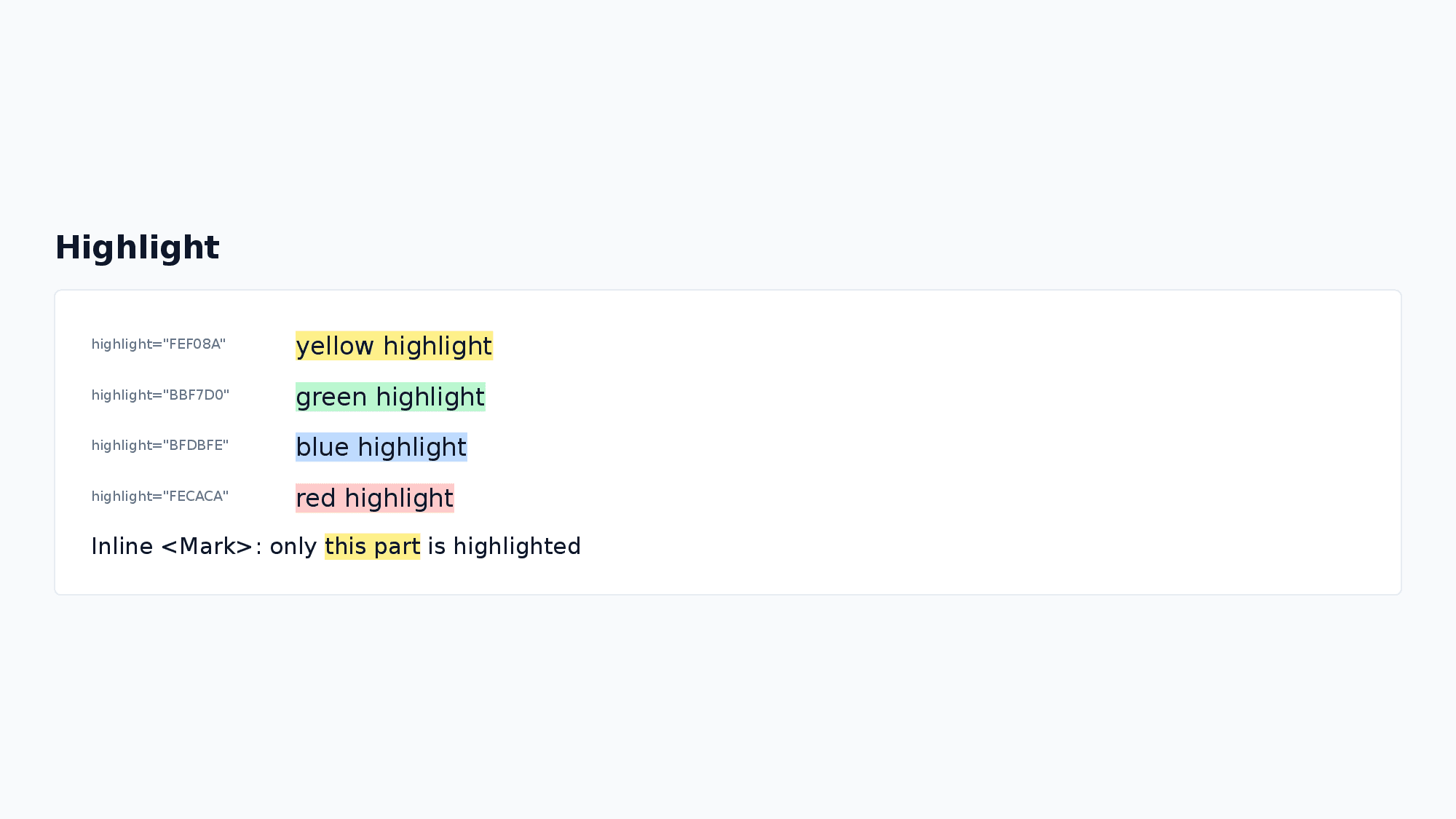
<Text highlight="FFFF00">Yellow highlighted text</Text>
<Text highlight="90EE90">Green highlighted text</Text>
Text Effects (glow / outline)
glow adds a glow halo around the characters; outline draws a border along the character edges. Both are exported as native PowerPoint text effects (editable, not rasterized) and are useful for keeping titles legible on top of background images.
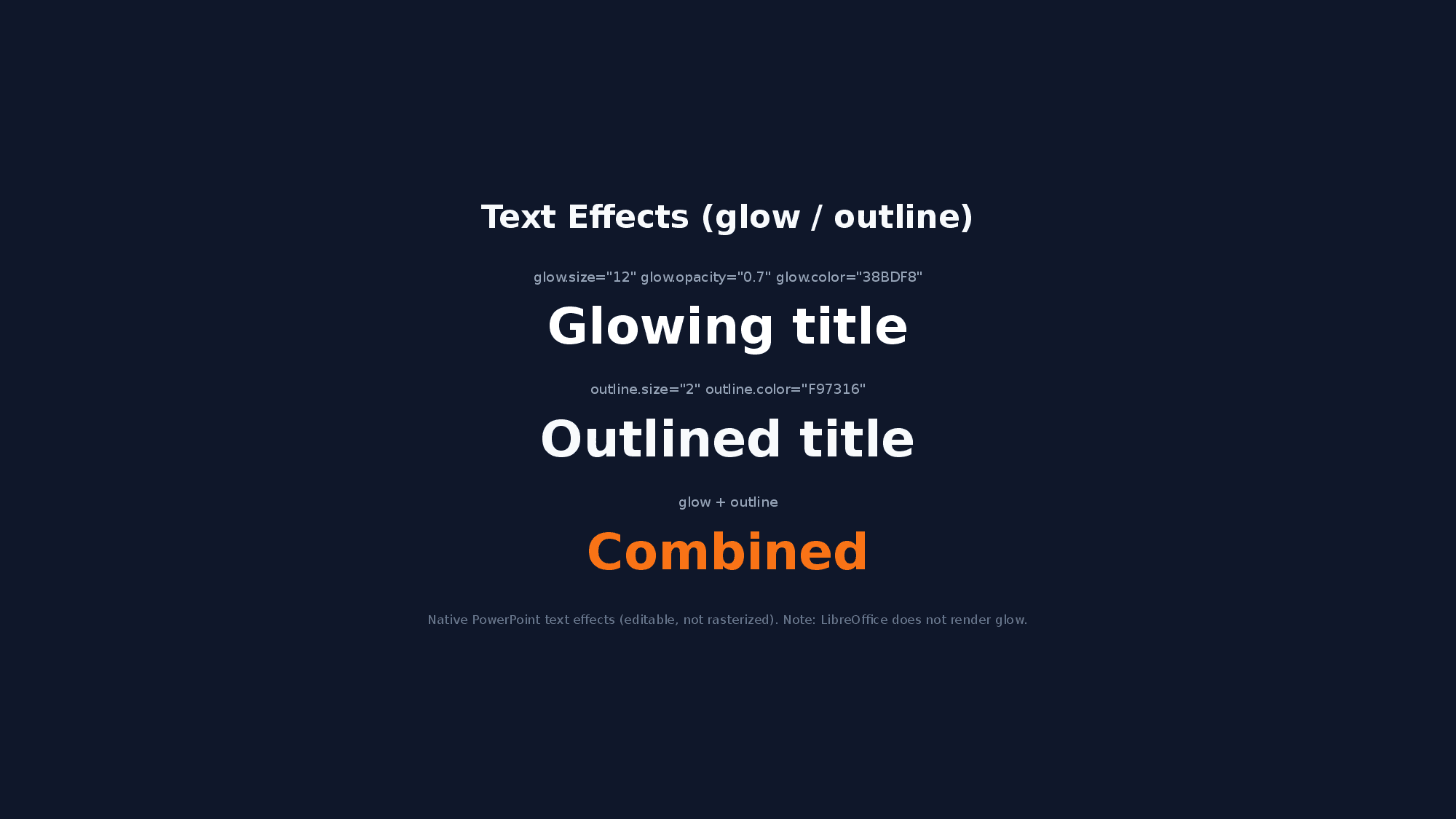
<Text fontSize="40" bold="true" color="FFFFFF" glow.size="8" glow.opacity="0.5" glow.color="1D4ED8">Glowing title</Text>
<Text fontSize="40" bold="true" color="FFFFFF" outline.size="2" outline.color="0F172A">Outlined title</Text>| Property | Type | Description |
|---|---|---|
glow.size | number | Glow radius in px (default: 8) |
glow.opacity | 0–1 | Glow opacity (default: 0.75) |
glow.color | hex | Glow color (default: FFFFFF) |
outline.size | number | Outline width in px (default: 1) |
outline.color | hex | Outline color (default: FFFFFF) |
- Both apply per text node. When inline formatting (
<B>,<Span>, …) is used, the node-level effect applies to all runs. - LibreOffice does not render character glow (outline renders fine); open the PPTX in PowerPoint to see the glow.
Text Alignment
<Text textAlign="left">Left aligned (default)</Text>
<Text textAlign="center">Center aligned</Text>
<Text textAlign="right">Right aligned</Text>
Background
Background Color
All nodes support backgroundColor:
<Text backgroundColor="F8F9FA" padding="16">Content on a light gray background</Text>Background Gradient
Apply a CSS-like linear-gradient() or radial-gradient() as the background with backgroundGradient. Exported as a native PowerPoint gradient fill (editable in PowerPoint, not rasterized). Takes precedence over backgroundColor and works on the slide root for full-slide gradient backgrounds.
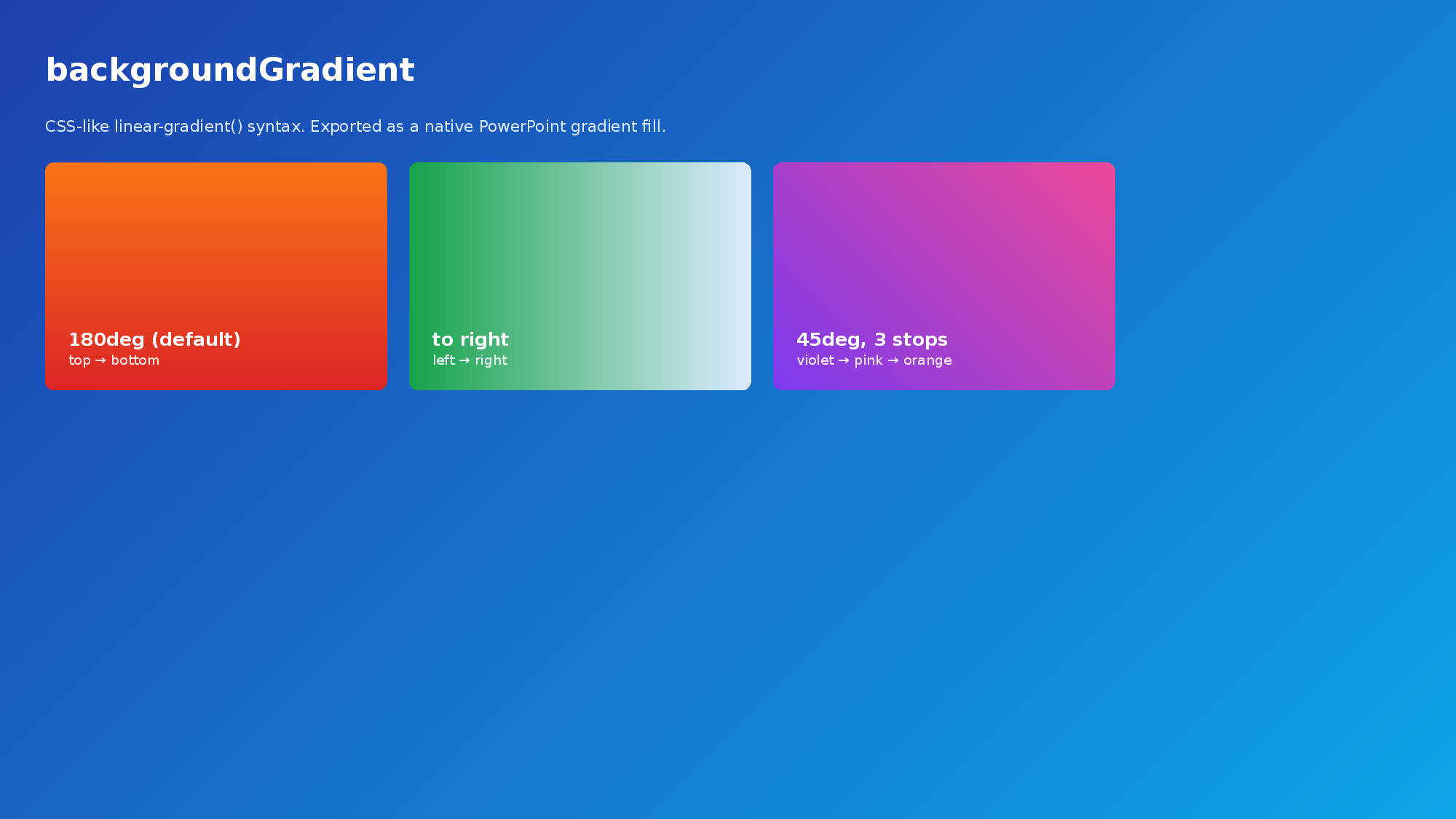
<VStack backgroundGradient="linear-gradient(135deg, #1E40AF 0%, #0EA5E9 100%)" w="600" h="300" padding="32">
  <Text fontSize="24" color="FFFFFF" bold="true">Gradient background</Text>
</VStack>
<VStack backgroundGradient="linear-gradient(to right, #16A34A 0%, #DBEAFE 100%)" w="600" h="200" padding="32" />
<VStack backgroundGradient="linear-gradient(45deg, #7C3AED 0%, #EC4899 50%, #F97316 100%)" w="600" h="200" padding="32" />
<VStack backgroundGradient="radial-gradient(circle at center, #1D4ED8 0%, #38BDF8 100%)" w="600" h="300" padding="32">
  <Text fontSize="24" color="FFFFFF" bold="true">Radial blob</Text>
</VStack>
<VStack backgroundGradient="radial-gradient(circle at top right, #7C3AED 0%, #0F172A 70%)" w="600" h="300" padding="32" />- linear-gradient: angle accepts
<n>deg(0 = bottom-to-top, clockwise) orto <direction>keywords (to right,to bottom left, …) and defaults to180deg(top-to-bottom). - radial-gradient: optional
<shape>(circle/ellipse, defaultellipse) + optional<size>(closest-side/closest-corner/farthest-side/farthest-corner, defaultfarthest-corner) + optionalat <position>(at center/at top right/at 25% 75%etc., defaultcenter). PowerPoint’s radial fill follows the container aspect ratio and does not visually distinguishcirclevs.ellipseor the size keyword — they are accepted as syntax but render the samefarthest-cornerellipse on output. Only the center position changes the rendered result. - Both forms require two or more hex color stops; stop positions (
%) are optional and distributed evenly when omitted.
Text Gradient
Paint the characters themselves with a linear-gradient() via textGradient on <Text>. Same syntax as backgroundGradient (angle + 2 or more hex color stops). Exported as a native PowerPoint gradient text fill (editable in PowerPoint, not rasterized). Takes precedence over color, and overrides per-run colors inside inline tags (<Span color="..."> etc.) so the whole text reads with one gradient. Useful for cover titles, KPI numerals, and pull quotes.
<Text fontSize="64" bold="true" textGradient="linear-gradient(90deg, #38BDF8 0%, #A78BFA 100%)">Gradient title</Text>
<Text fontSize="56" bold="true" textGradient="linear-gradient(135deg, #F472B6, #FB923C)">¥84.2M</Text>
Background Image
Set a background image with backgroundImage.src and control sizing with backgroundImage.sizing:
<Text backgroundImage.src="./photo.jpg" backgroundImage.sizing="cover" w="400" h="300" color="FFFFFF">Text over image</Text>| Property | Values | Description |
|---|---|---|
backgroundImage.src | URL / file path / base64 | Image source |
backgroundImage.sizing | cover / contain | cover fills area (default), contain fits within |
Border
Add borders to any node with dot notation:
<Text border.color="E5E7EB" border.width="1" padding="16">Container with a light border</Text>Border Properties
| Property | Type | Description |
|---|---|---|
border.color | hex | Border color |
border.width | number | Border width (px) |
border.dashType | string | Line style (see below) |
Border Dash Types
See Common Properties in Nodes for available dash types.
<Text border.color="333333" border.width="2" border.dashType="dash" padding="16">Dashed border</Text>Border Radius
Round corners with borderRadius:
<Text backgroundColor="1D4ED8" borderRadius="8" padding="16" color="FFFFFF">Rounded box</Text>Per-Side Border
Style each edge independently with borderTop / borderRight / borderBottom / borderLeft. Each uses the same fields as border (color / width / dashType).
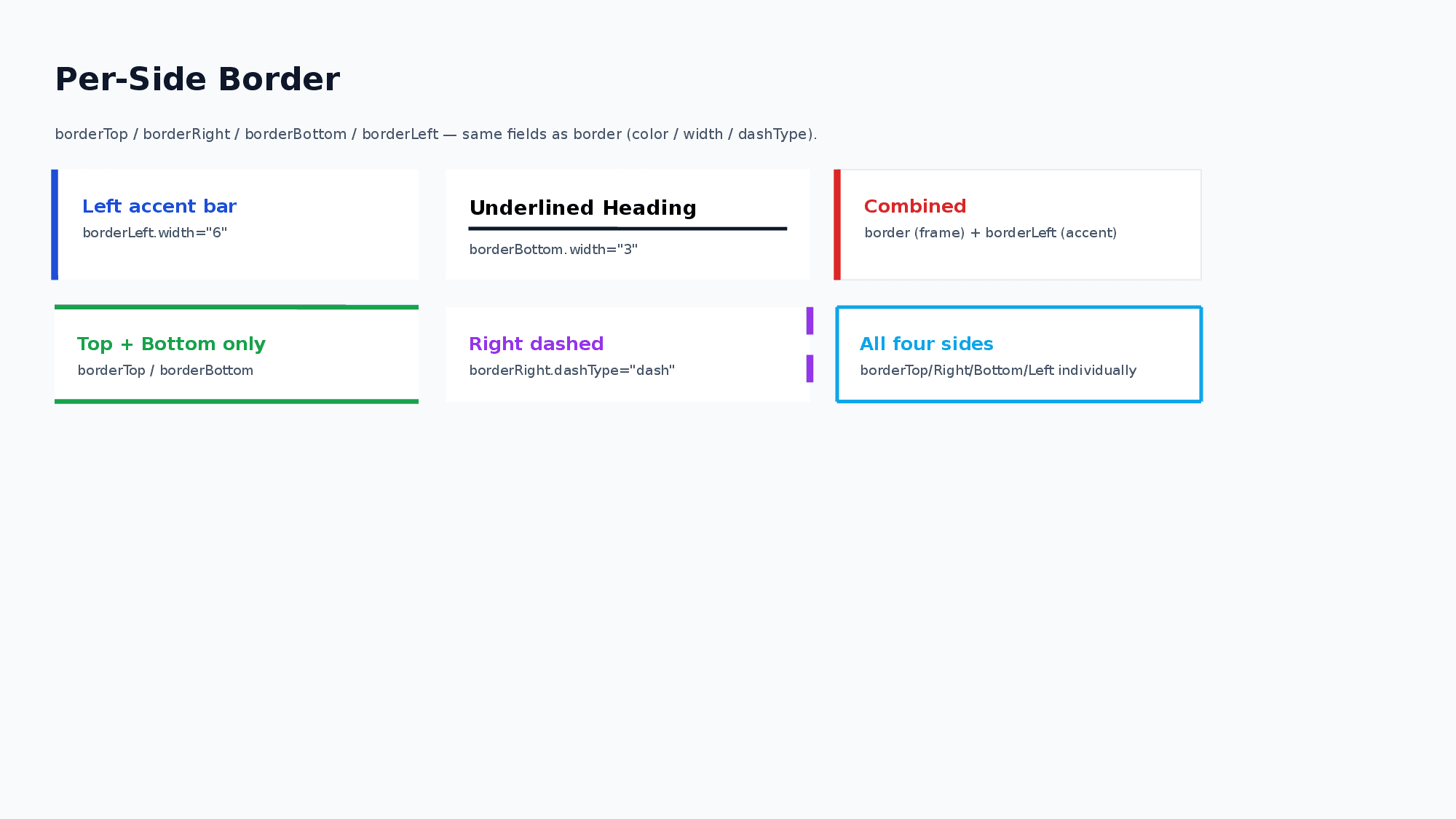
<Text borderLeft.color="1D4ED8" borderLeft.width="6" padding.left="16">Accent bar</Text>
<Text borderBottom.color="333333" borderBottom.width="3">Underlined heading</Text>- Per-side values merge field-by-field with the uniform
border(per-side takes precedence) —border.color="E5E7EB" border.width="1" borderLeft.width="6"is a thin frame with a thick left accent. - Per-side borders can be combined with
borderRadius. WhenborderTopis present, both upper corner arcs are painted inborderTop’s color; whenborderBottomis present, both lower corner arcs are painted inborderBottom’s color.borderLeft/borderRightonly ever draw their straight segment between the rounded corners — they do not “wrap” into the arcs, soborderLeft+borderRadiusreads as a clean left accent bar with neutral rounded corners.
Shadow
Add drop shadows to any node (except Line):
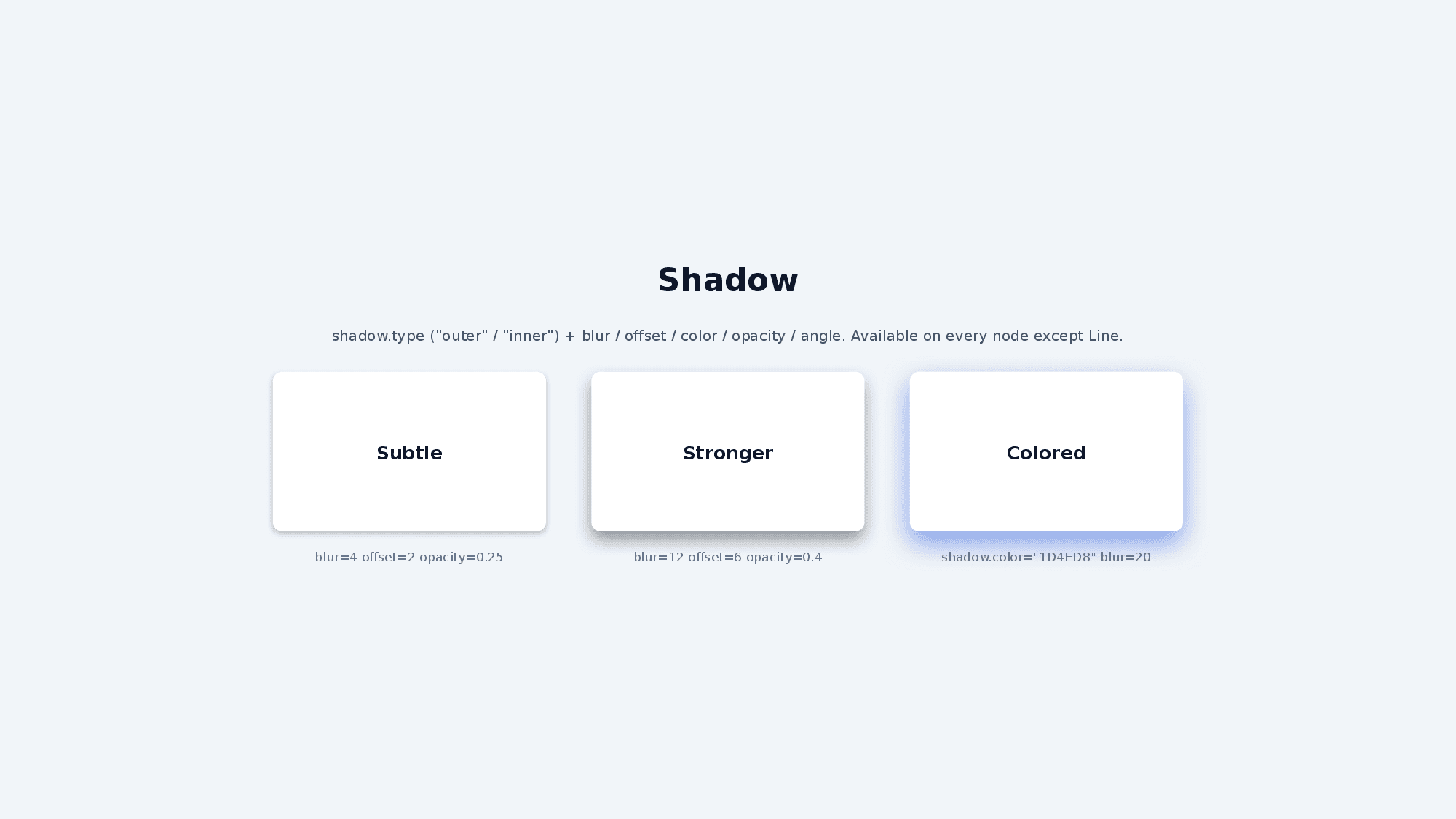
<VStack shadow.type="outer" shadow.blur="4" shadow.offset="2" shadow.color="000000" shadow.opacity="0.3" padding="16">
  <Text>Card with shadow</Text>
</VStack>
Shadow Properties
| Property | Type | Description |
|---|---|---|
shadow.type | string | outer (default) / inner |
shadow.blur | number | Blur radius |
shadow.offset | number | Offset distance |
shadow.angle | number | Angle in degrees |
shadow.color | hex | Shadow color |
shadow.opacity | 0–1 | Shadow opacity |
Opacity
Control background transparency with opacity (0 = fully transparent, 1 = fully opaque):
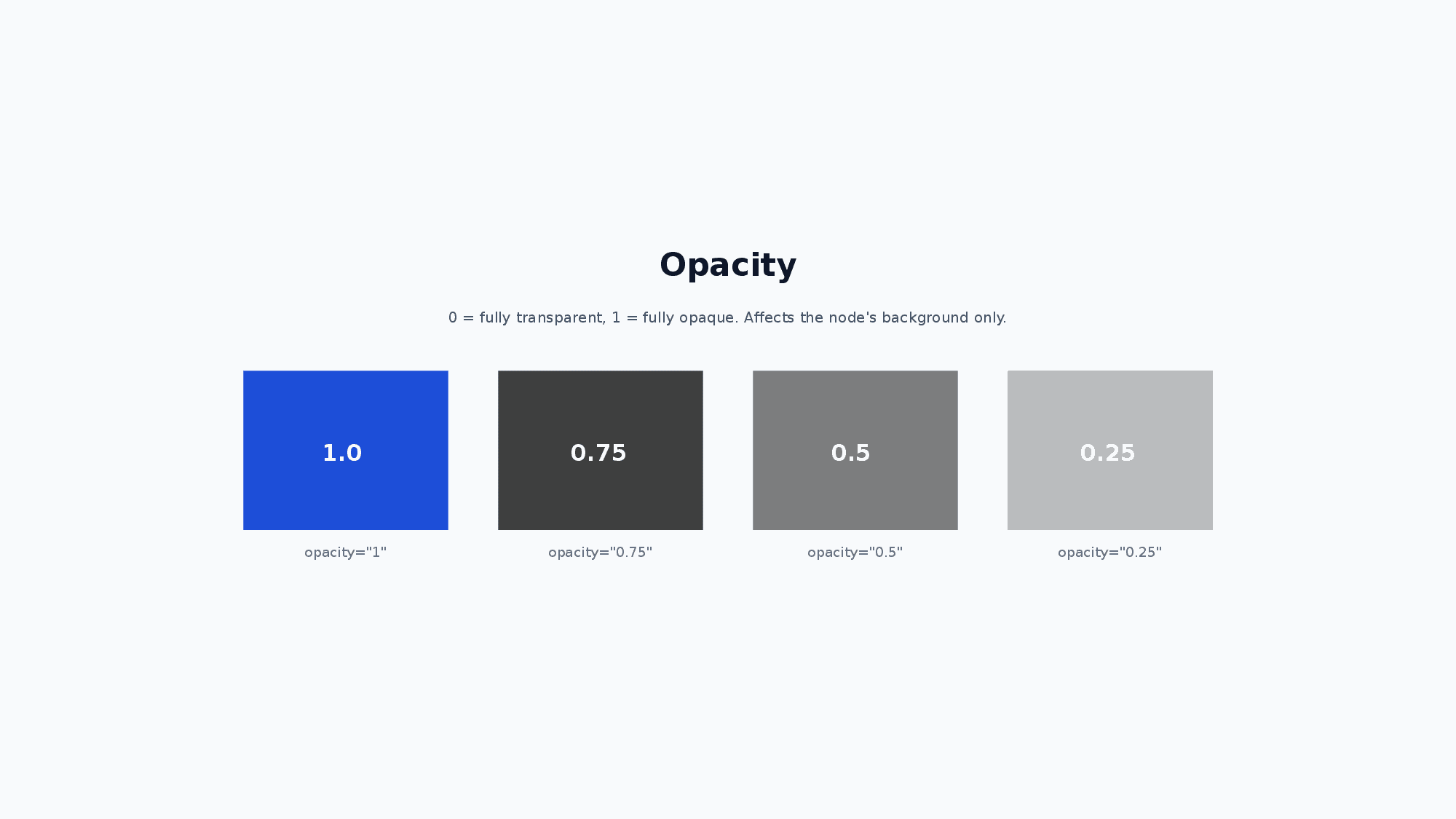
<Text backgroundColor="1D4ED8" opacity="0.5" padding="16">Semi-transparent blue background</Text>Rotation
Text, Shape, Image, and Icon accept rotate as a number of degrees clockwise. Rotation is applied only when rendering to PowerPoint; yoga layout uses the unrotated bounding box, so the rotated node does not change sibling placement or the parent’s size.
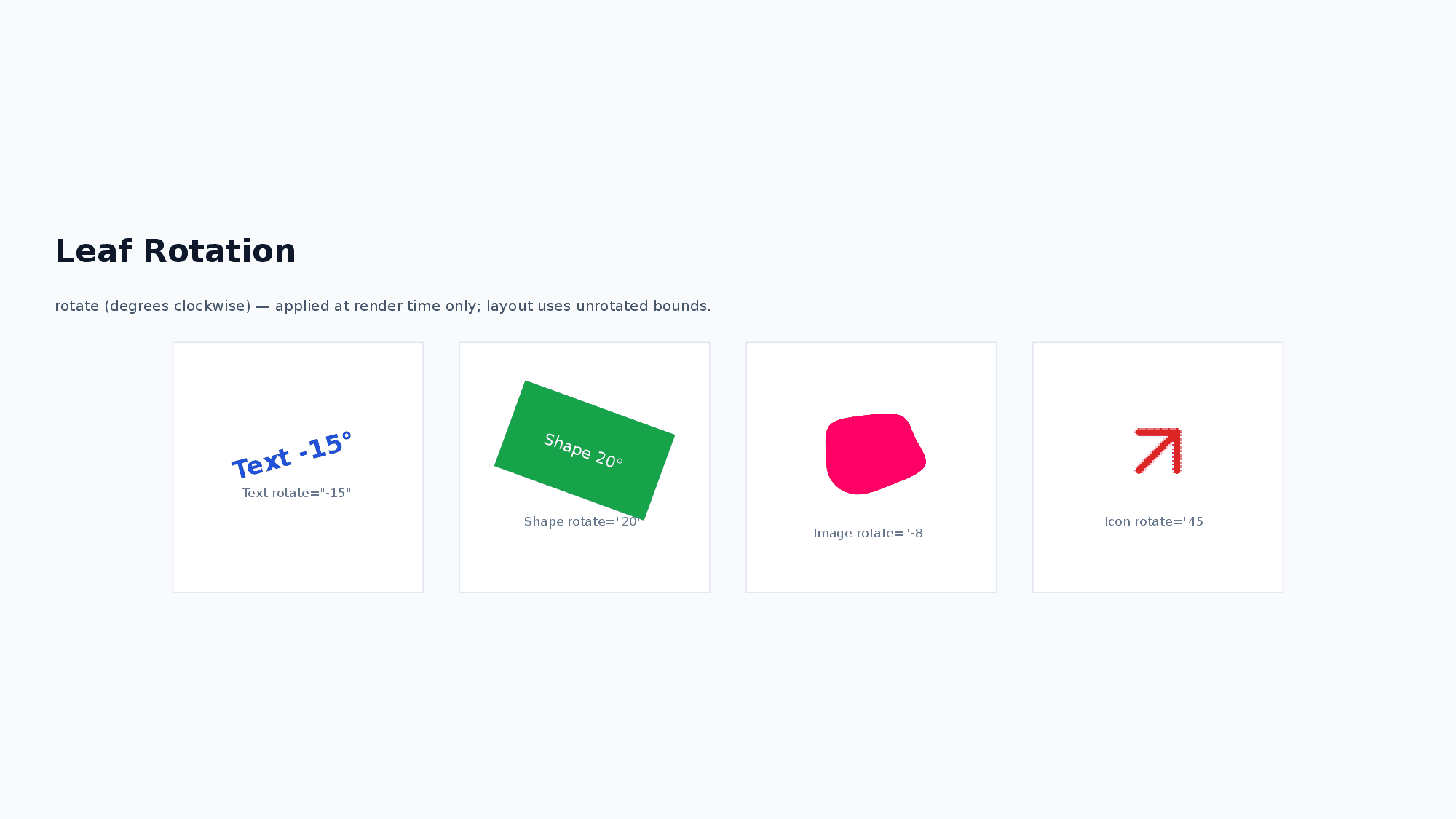
<Text rotate="12">Rotated label</Text>
<Shape shapeType="rect" w="120" h="60" rotate="-15" />
<Image src="sample.png" w="160" h="100" rotate="8" />
<Icon name="cpu" rotate="45" />
Rotated nodes are intentionally excluded from the
NODE_OUT_OF_BOUNDSdiagnostic because their final bounds cannot be derived from the static layout — verify them visually.
Overlay Pattern with Layer
Combine opacity with Layer for overlay effects:
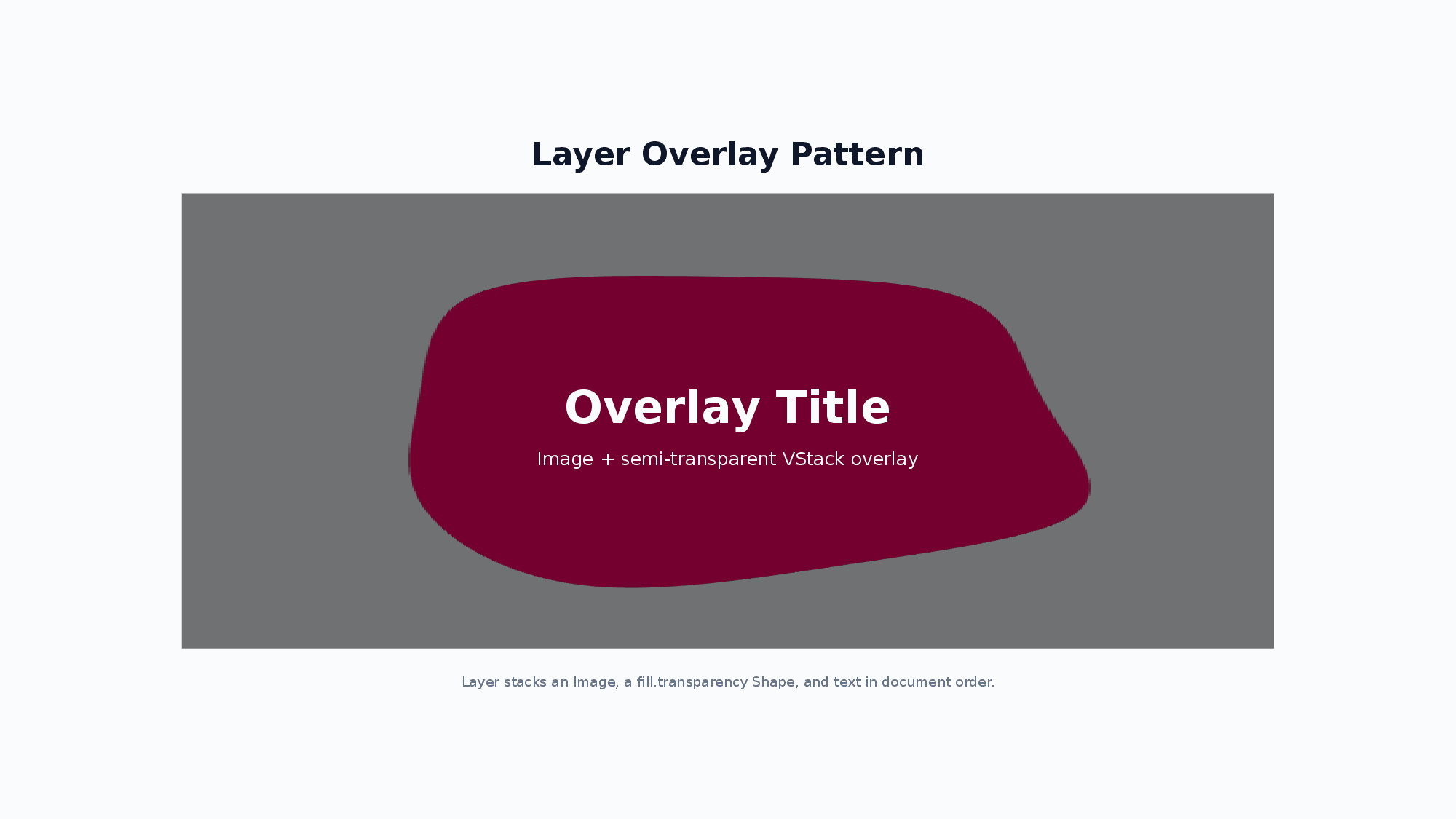
<Layer w="800" h="400">
  <Image src="./photo.jpg" w="800" h="400" />
  <Shape shapeType="rect" w="800" h="400" fill.color="000000" fill.transparency="0.6" />
  <VStack w="800" h="400" justifyContent="center" alignItems="center">
    <Text fontSize="36" bold="true" color="FFFFFF">Overlay Title</Text>
  </VStack>
</Layer>
Shape Fill and Line
Shape nodes use fill for background and line for outline (separate from the common border property):
<Shape shapeType="rect" w="200" h="100"
  fill.color="1D4ED8" fill.transparency="0"
  line.color="0F3B8E" line.width="2">
  Styled shape
</Shape>
Fill Properties
| Property | Type | Description |
|---|---|---|
fill.color | hex | Fill color |
fill.transparency | 0–1 | Fill transparency (0 = opaque) |
Line Properties
| Property | Type | Description |
|---|---|---|
line.color | hex | Outline color |
line.width | number | Outline width (px) |
line.dashType | string | Same dash types as border |
Combining Styles
A practical example combining multiple styling techniques:
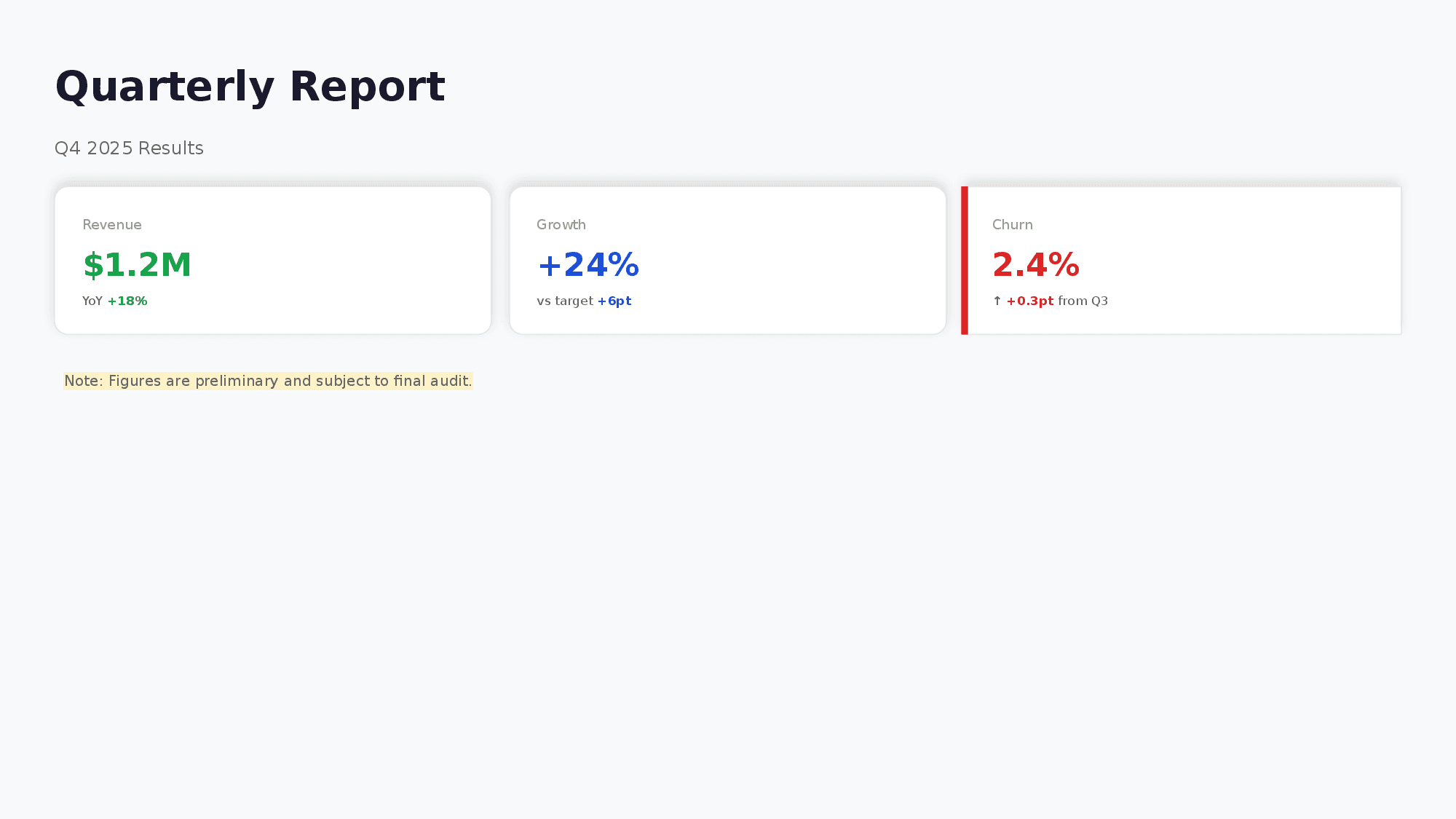
<VStack w="max" h="max" padding="48" gap="24" backgroundColor="F8F9FA">
  <!-- Title area -->
  <Text fontSize="36" bold="true" color="1A1A2E">Quarterly Report</Text>
  <Text fontSize="16" color="666666">Q4 2025 Results</Text>

  <!-- Card with shadow and border -->
  <HStack gap="16" w="max">
    <VStack backgroundColor="FFFFFF" borderRadius="8" padding="24" gap="8"
      border.color="E5E7EB" border.width="1"
      shadow.blur="4" shadow.offset="2" shadow.color="000000" shadow.opacity="0.1">
      <Text fontSize="12" color="999999">Revenue</Text>
      <Text fontSize="28" bold="true" color="16A34A">$1.2M</Text>
    </VStack>
    <VStack backgroundColor="FFFFFF" borderRadius="8" padding="24" gap="8"
      border.color="E5E7EB" border.width="1"
      shadow.blur="4" shadow.offset="2" shadow.color="000000" shadow.opacity="0.1">
      <Text fontSize="12" color="999999">Growth</Text>
      <Text fontSize="28" bold="true" color="1D4ED8">+24%</Text>
    </VStack>
  </HStack>

  <!-- Highlighted note -->
  <Text fontSize="13" color="666666" highlight="FEF3C7">
    Note: Figures are preliminary and subject to final audit.
  </Text>
</VStack>